
Export to Android
Android export builds an APK: an app that runs the Web version of the game inside it, offline, with no internet needed. So set up and validate Web first: its touch controls and warnings apply here too.
1. What to install first
Section titled “1. What to install first”The engine does not ship the Android tools. Install them once:
- Android Studio. It brings the JDK (Java) and the Android SDK, the two things the engine needs.
- Open Android Studio once and let it finish downloading the SDK.
- In Tools > SDK Manager > SDK Platforms, install Android SDK Platform 37.
The engine finds Android Studio by itself (it also checks JAVA_HOME and ANDROID_HOME). If it’s somewhere else, point to the folders in Tools > JDK and Android SDK in the panel.
2. Open the panel
Section titled “2. Open the panel”Properties > Export Game > Android (Web).
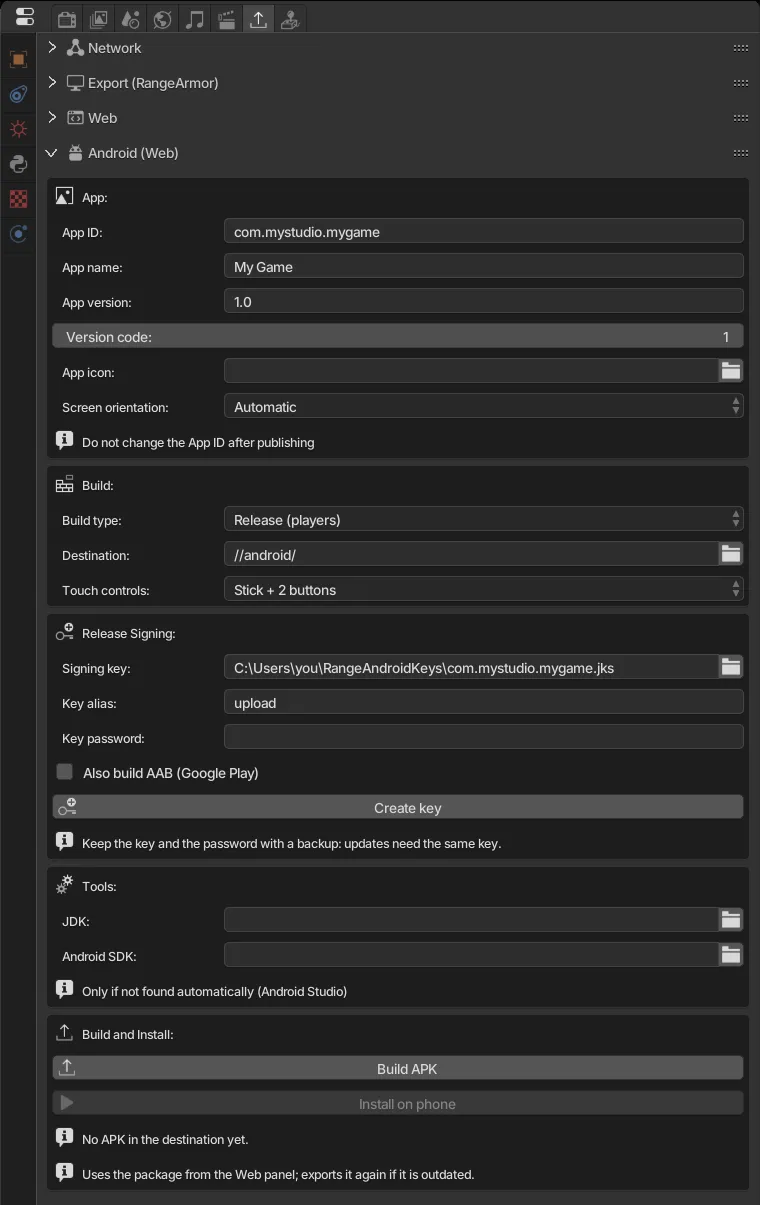
3. App
Section titled “3. App”| Field | What it does |
|---|---|
| App ID | Unique app identity, like com.yourname.yourgame (letters, numbers and _, separated by dots; each part starts with a letter). |
| App name | Name shown under the icon. Empty uses the file name. |
| App version | Version the player sees, for example 1.0. |
| Version code | Whole number. Increase it with every new version (1, 2, 3…), or the phone refuses the update. |
| App icon | Square PNG, ideally 512×512. Empty uses the Android default icon. |
| Screen orientation | Automatic (rotates with the phone), Landscape or Portrait. |
4. Build
Section titled “4. Build”- Build type:
- Debug (testing): for testing on your phone. No key needed. Use it while developing.
- Release (players): final version, signed with your key. Use it to ship.
- Destination: folder for the APK, report and log (default
//android/). - Touch controls: the same on-screen controls as the Web panel.
5. The signing key (.jks)
Section titled “5. The signing key (.jks)”Only needed for Release. Every Android app must be signed, and every update must be signed with the same key as the first release.
You don’t need to get this file from anywhere: the engine creates it for you.
- Set Build type to Release (players). The Release Signing box appears.
- Fill in:
- Key alias: name of the key inside the file. You can keep
upload. - Key password: a password with at least 6 characters.
- Key alias: name of the key inside the file. You can keep
- Click Create key.
The engine uses the JDK’s keytool to generate the key (RSA 4096, valid for about 27 years) and fills in the Signing key field. If you left that field empty, the file goes to:
C:\Users\<you>\RangeAndroidKeys\<App ID>.jksTo choose another location, fill Signing key with the file path before clicking Create key. The engine never overwrites an existing key.
Already have a .jks from another game or from Android Studio? You can use it: point Signing key to it and fill in its alias and password.
The password is not saved in the .range. After reopening the engine, type it again before building.
6. Build the APK
Section titled “6. Build the APK”Click Build APK. The engine saves the file and runs Gradle in the background (the first time takes longer because it downloads dependencies). Progress shows in the panel.
The output goes to Destination: the .apk, android-report.json and gradle.log (open this one if something goes wrong).
Also build AAB (Google Play): also builds the .aab, the format Google Play requires. The APK is still built so you can install it on your phone.
7. Install on your phone
Section titled “7. Install on your phone”- On the phone, enable Developer options (in About phone, tap Build number 7 times) and, inside them, USB debugging.
- Connect the phone to the PC with a USB cable and accept the “Allow USB debugging?” prompt on the phone.
- Click Install on phone. The game installs and opens by itself.
You can also copy the .apk to the phone and open it from the file manager (Android asks you to allow “unknown sources”).
8. Publish on Google Play
Section titled “8. Publish on Google Play”- Build in Release with Also build AAB on.
- In the Google Play Console, create the app and upload the
.aab. - The first time, accept Play App Signing: Google keeps the final key and your
.jksbecomes the upload key. Keep your backup anyway. - For each update: increase the Version code, build again with the same key and upload the new
.aab.
Common problems
Section titled “Common problems”| Message | Fix |
|---|---|
| JDK and Android SDK not found (or JDK not found) | Install Android Studio or point to the folders in Tools. |
| The Android SDK … does not have platform 37 | Android Studio > SDK Manager > install Android SDK Platform 37. |
| No phone connected | USB cable plugged in and USB debugging on. Try another cable: some only charge. |
| The phone did not authorize this computer | Unlock the phone and accept the USB debugging prompt. |
| The phone already has … signed with another key | The phone has a version signed with another key (for example, the Debug one). Uninstall it and install again. |
| The phone has a newer version | Increase the Version code. |
| Password or alias error when building | The password or alias doesn’t match the .jks. |